Your scenes, wherever you sell and share

Put one 3D scene on your website, a share link and the TV in your club rooms, and make it by chatting in Claude or ChatGPT. Shopify and WooCommerce product pages are coming soon.

  • ShopifySoon
  • WooCommerceSoon
  • Claude
  • ChatGPT
  • Your website
  • Link and QR
  • TV screen
One Unveil3D scene, connected to Shopify, WooCommerce, Claude, ChatGPT, your website, a share link with a QR code, and a TV screen.

Three steps, wherever it goes

  1. Connect

    Add Unveil3D to Claude or ChatGPT, or copy one snippet for your website.

    You do it once.

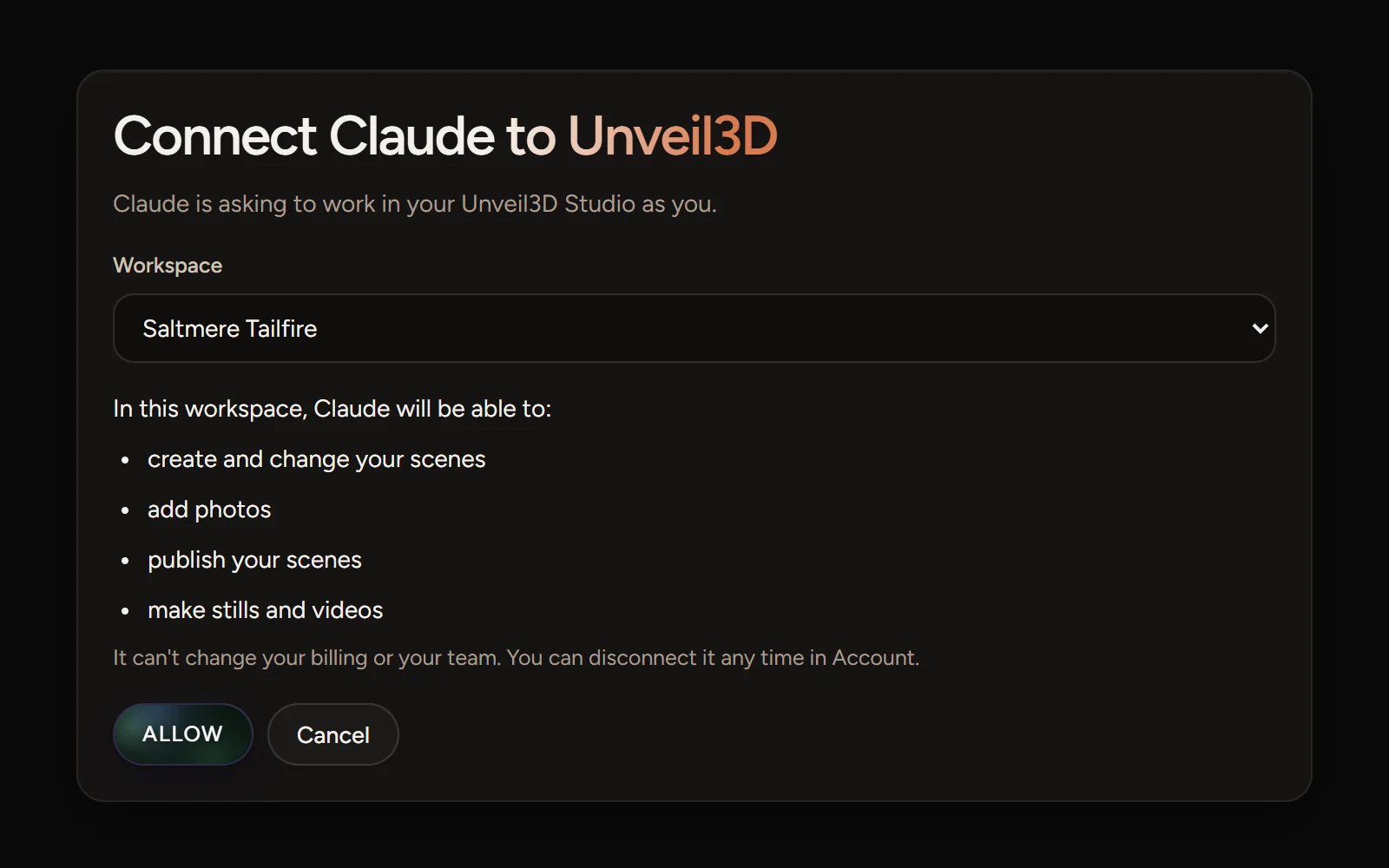
    The Unveil3D screen where Claude asks to work in your workspace, with what it will be able to do and an Allow button.
  2. Add your photos

    Upload your players’ photos, in the chat or in the Studio.

    Cut-outs are ready in about a minute.

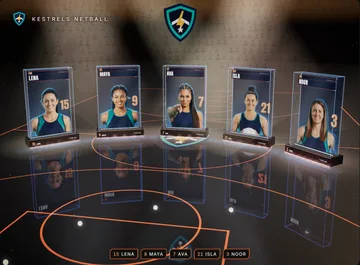
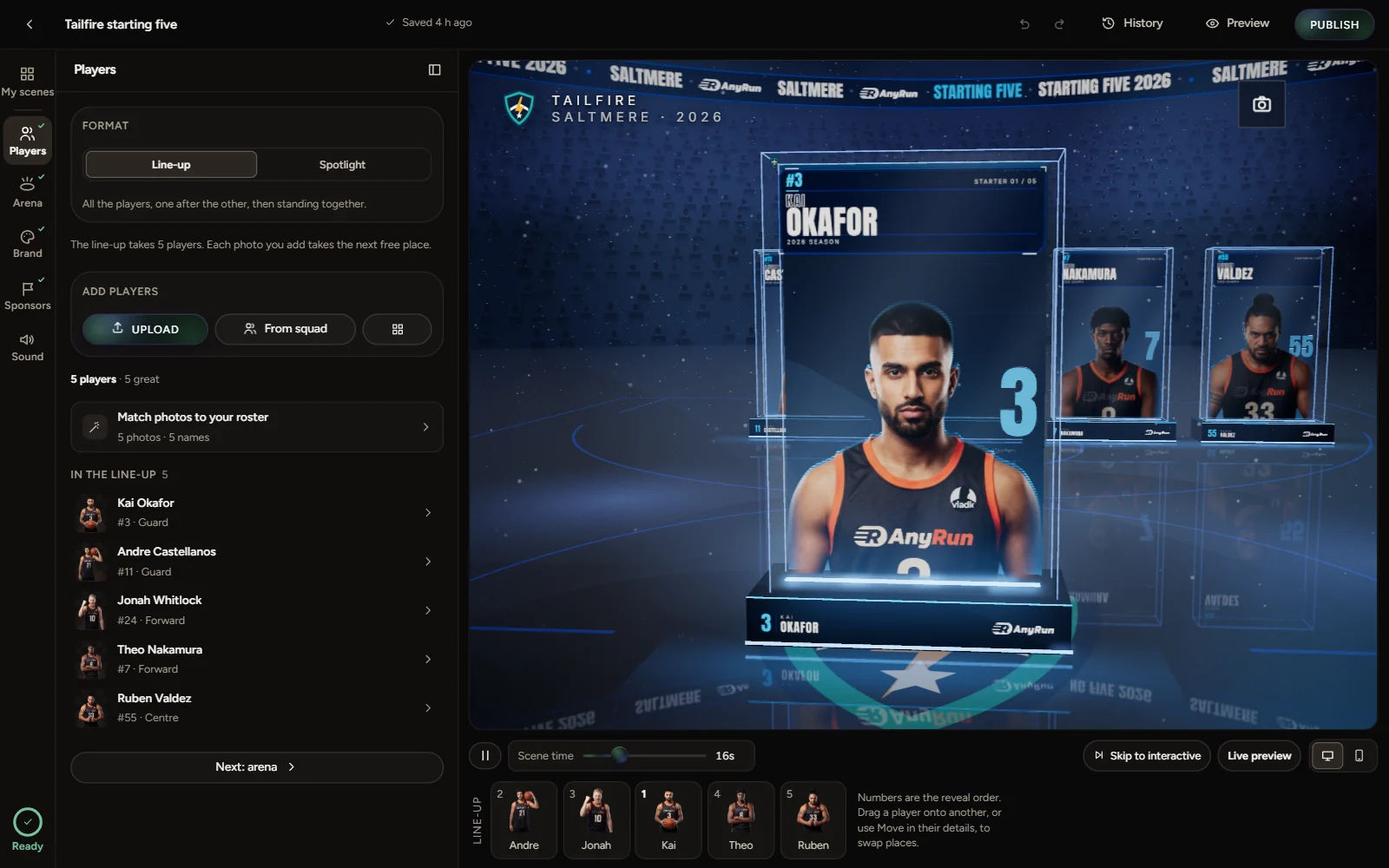
    The Studio with five players in the line-up and the scene showing their cards.
  3. The scene appears

    On your website, on a screen or in the chat.

    Live, with a link to share.

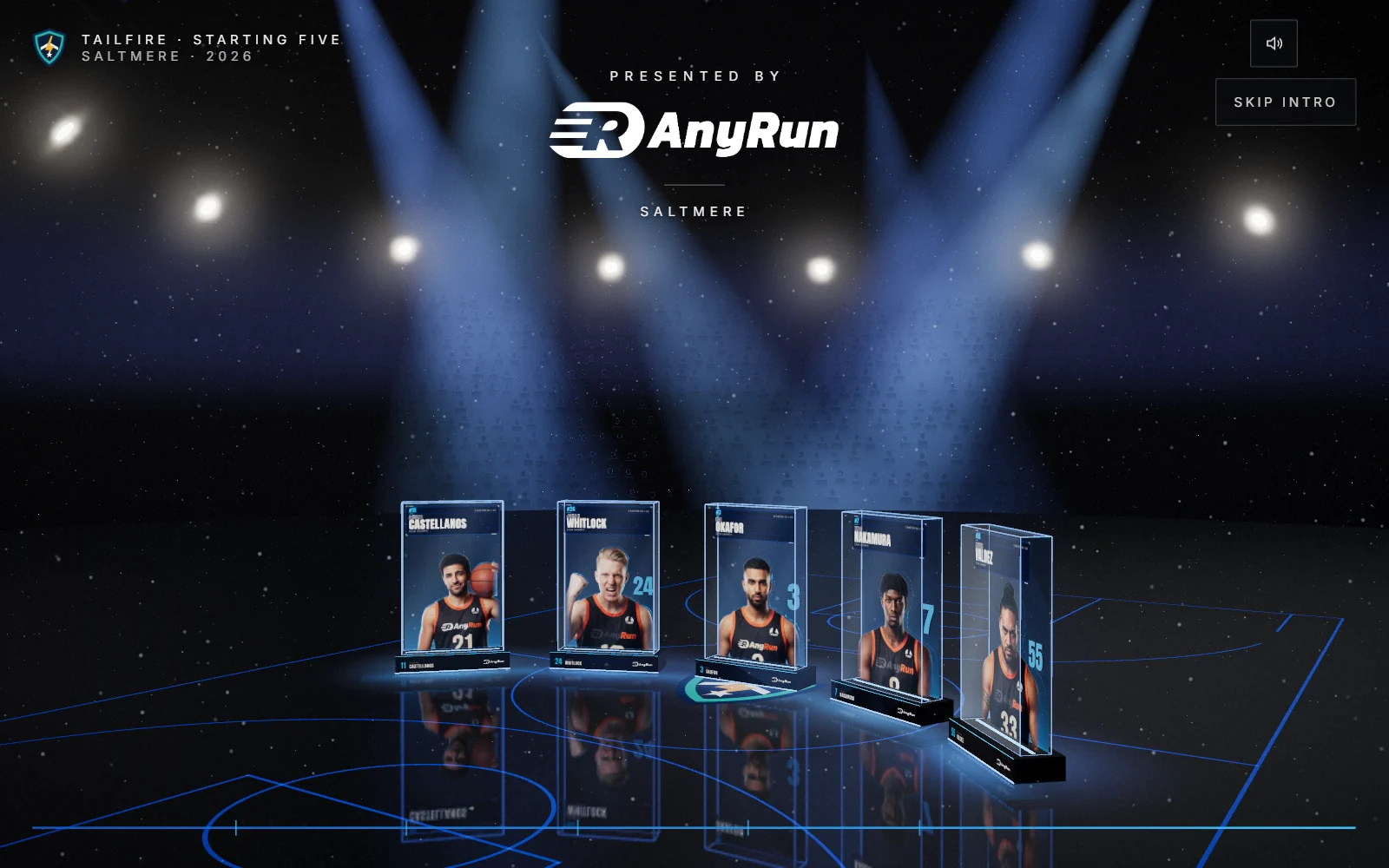
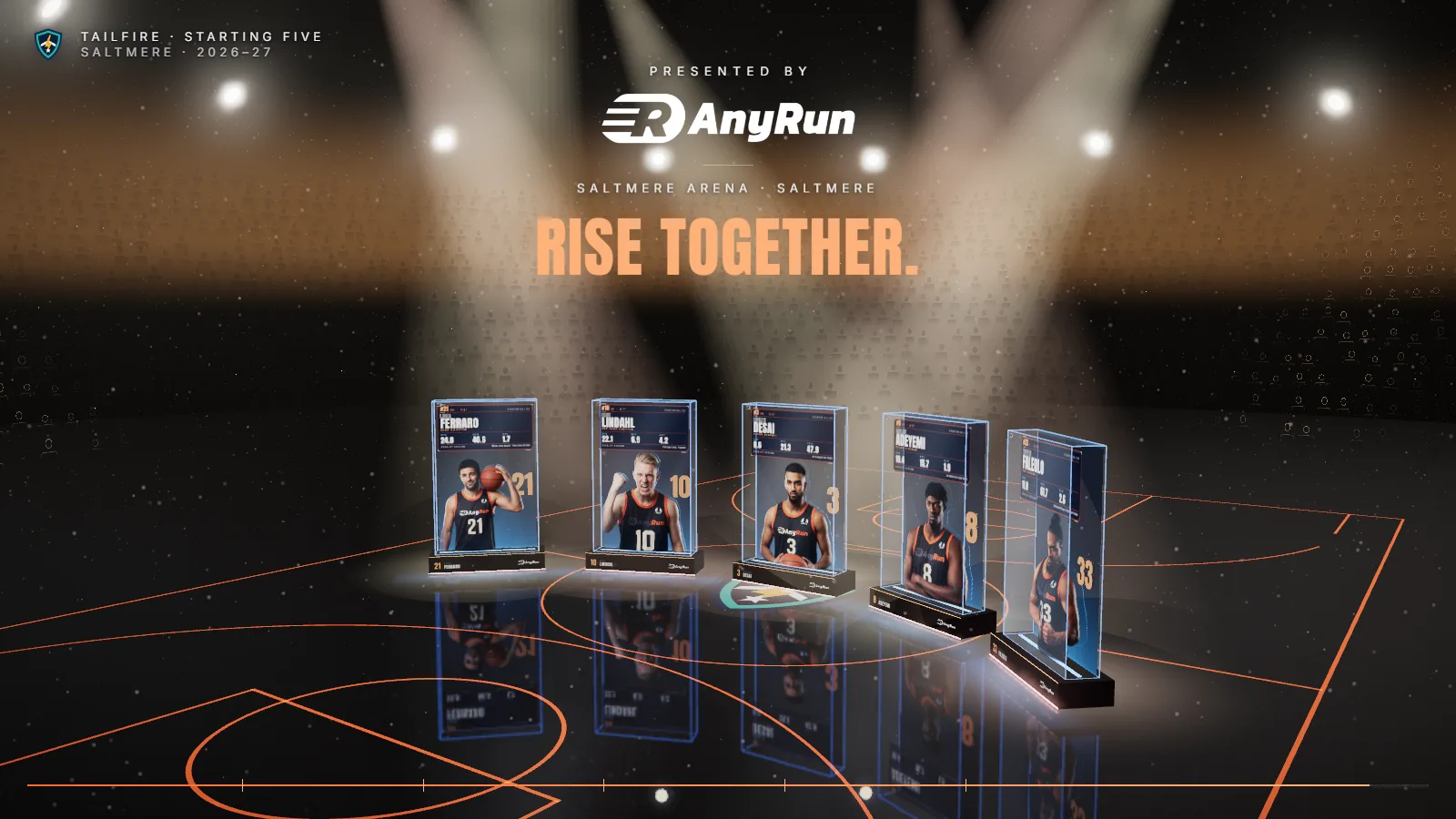
    The live Starting Five scene, open from its share link.

In Claude and ChatGPT

  • ClaudeAvailable now
  • ChatGPTAvailable now

Add it by link today. In the Claude and ChatGPT directories soon. How to connect

Make a scene by chatting. The real scene opens inside the conversation as a panel you can click, so you see every change as you ask for it, and never have to open the Studio.

  1. What can you make for a netball club?

    Ten scenes. Pick one below, or tell me the moment and I’ll choose.

    The Unveil3D panel in a chat: a grid of ten scenes to pick from, each with its picture and a line about it.

    Pick a scene

    Every scene your workspace can make, with a real frame of each. Tap one, or just say what you need.

  2. Make a starting five for the Adelaide Comets. Photos attached.

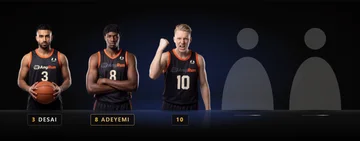
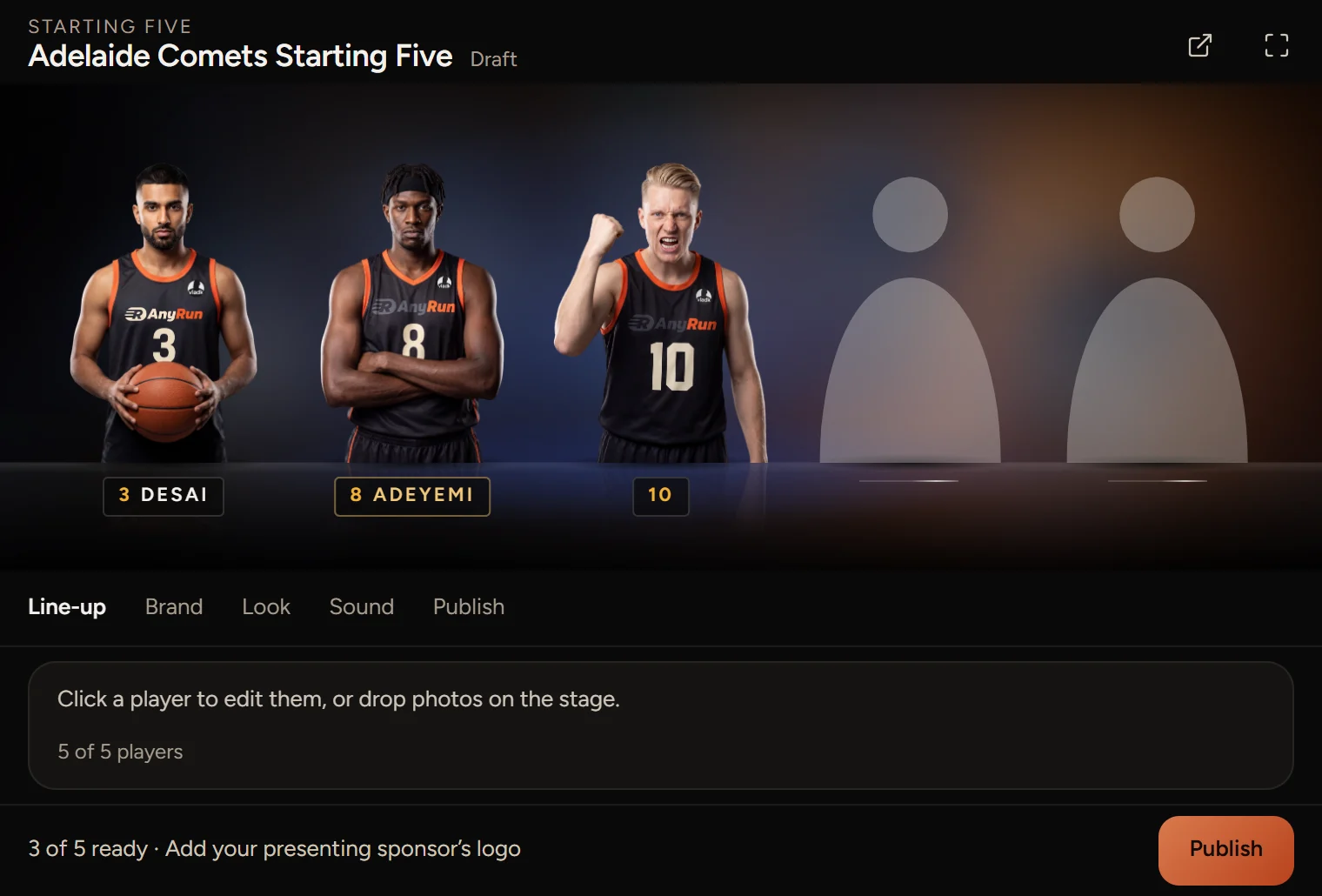
    I’ve made the scene and added your photos. Three of five are in. Send two more when you have them.

    The Unveil3D panel in a chat: a Starting Five scene with three of five players in and two empty places.

    Watch it fill

    Photos are cut out in about a minute and take their place. The panel says what is still missing.

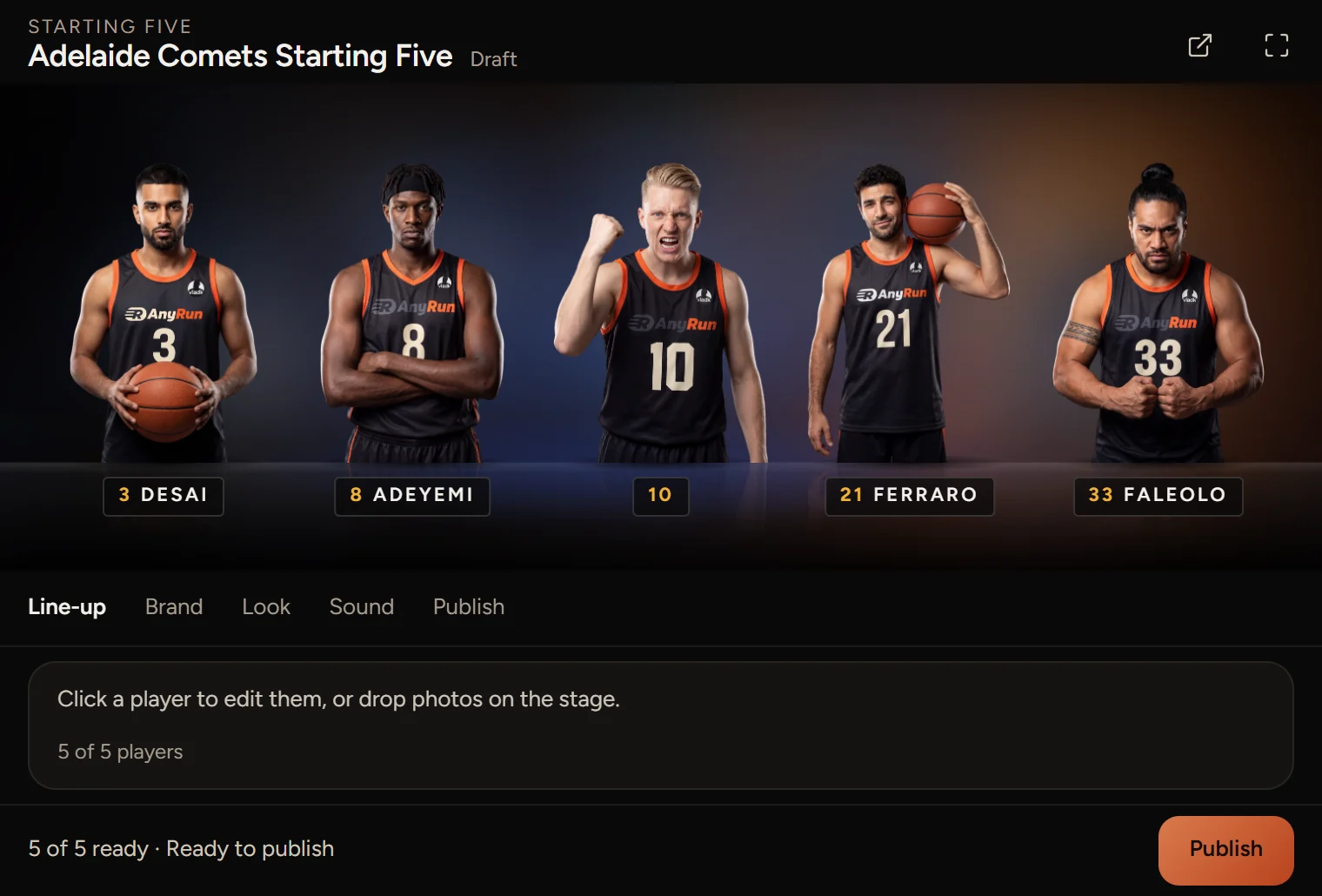
  3. Add Ferraro and Faleolo to the line-up.

    Done. All five are in. Have a look before you publish.

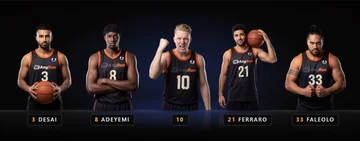
    The Unveil3D panel in a chat: all five players in the line-up, ready to publish.

    Change it in place

    Click a player in the panel to edit them, or keep asking. Line-up, Brand, Look, Sound and Publish are tabs in the panel.

  4. Looks good. Publish it.

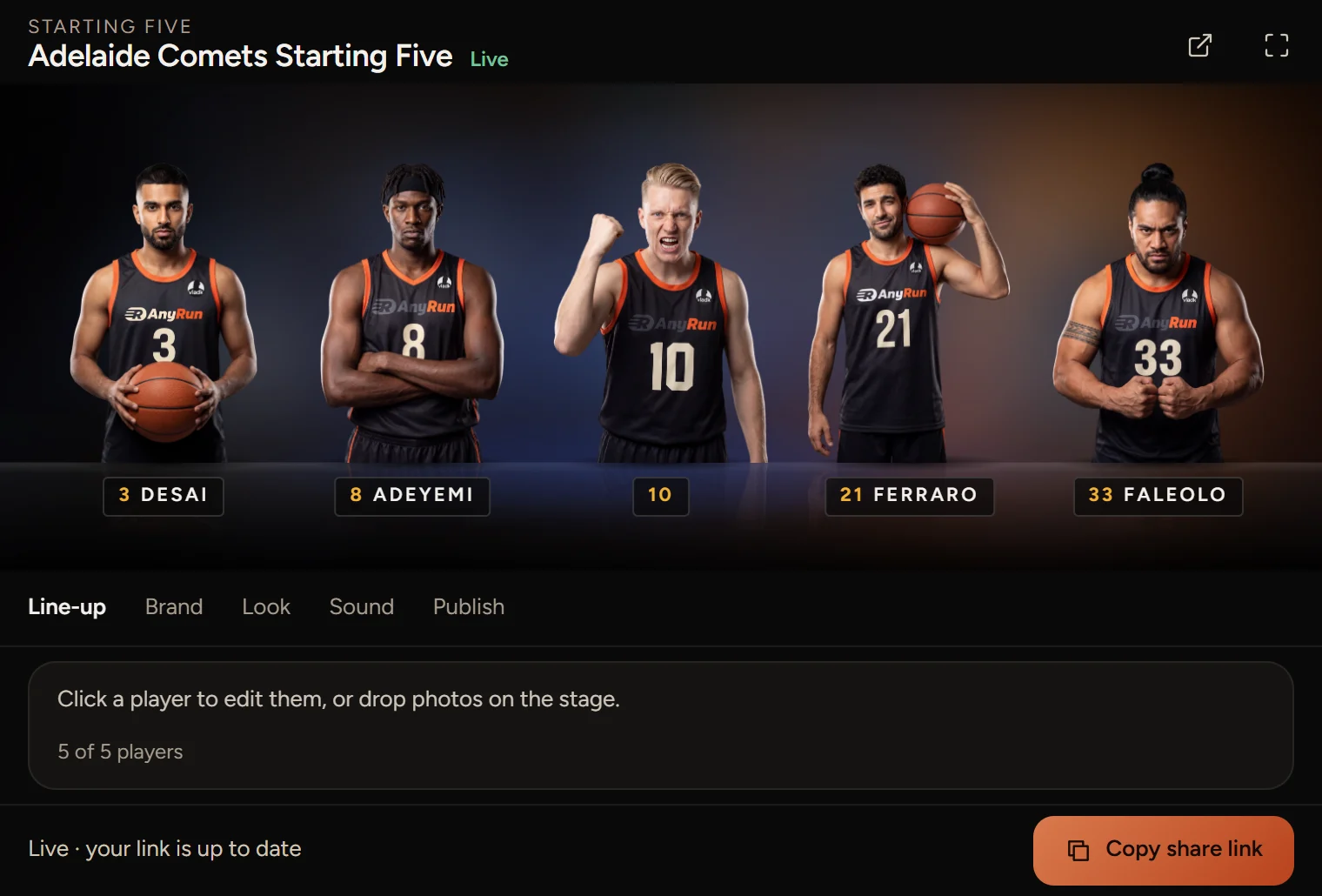
    It’s live. Here is your share link and the embed code.

    The Unveil3D panel in a chat: the scene is live, with a Copy share link button.

    Publish and copy the link

    One button copies the share link. The reply carries the screen link, the embed code and the scene’s page in the Studio.

  5. Make stills for Instagram.

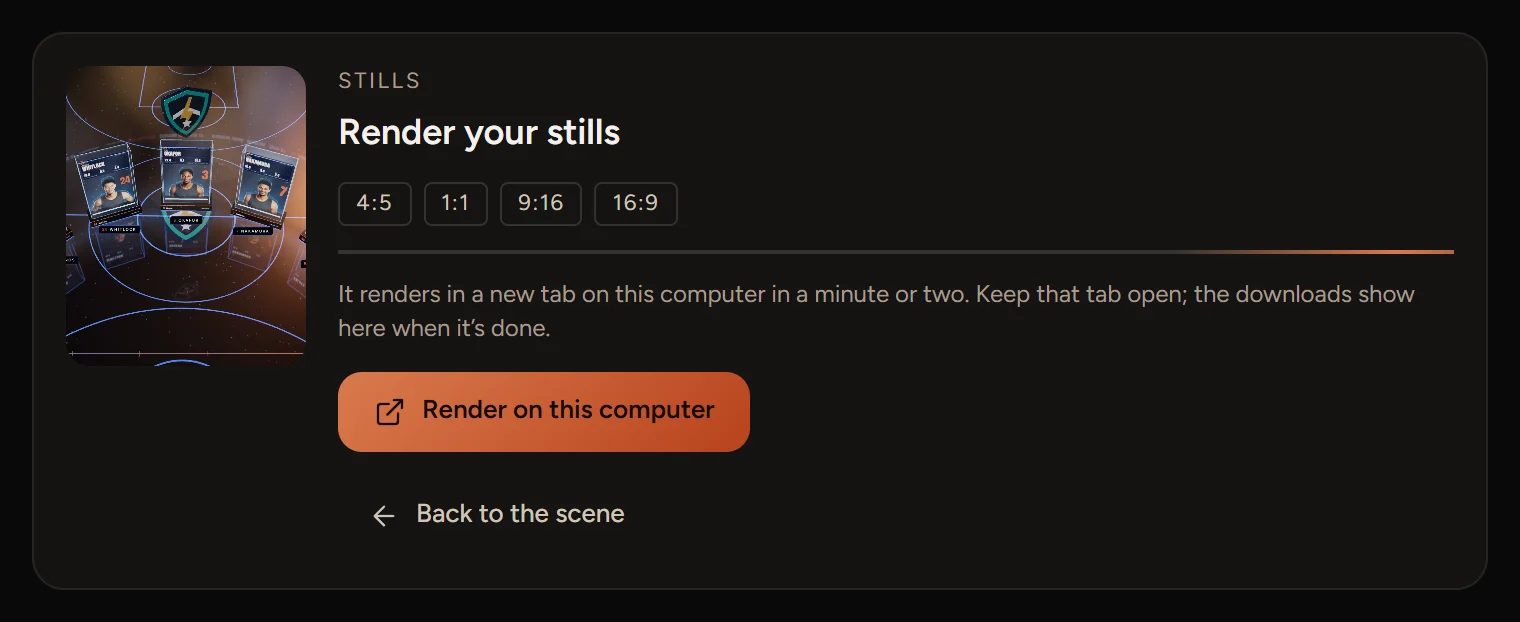
    Open this to render them on your computer. I’ll show the downloads when they are ready.

    The Unveil3D panel in a chat: Render your stills, at 4:5, 1:1, 9:16 and 16:9, with a Render on this computer button.

    Stills and video

    They render on your own computer in a minute or two, and the downloads come back to the chat.

The Unveil3D panel as it opens in the chat, shown in a plain chat frame. The players are fictional.How it works in Claude and ChatGPT

Add it today, by link

Unveil3D is in review for the Claude and ChatGPT directories. Until it’s listed, add it with its address. It takes about a minute.

Connector address https://mcp.unveil3d.com/mcp

In Claude

  1. Open Customize, then Connectors.
  2. Click Add, then “Add custom connector”.
  3. Name it Unveil3D and paste the address.
  4. Click Continue, then Add.
  5. Sign in to Unveil3D and pick your workspace.

Every Claude plan can add it. Free has room for one custom connector. On Team and Enterprise, an owner adds it first.

Open Claude’s connectors

In ChatGPT

  1. Open Plugins.
  2. Click Add, then “Add custom MCP server”.
  3. Name it Unveil3D and paste the address under Server URL.
  4. Tick “I understand and want to continue”, then “Create as a plugin”.
  5. Sign in to Unveil3D and pick your workspace.

ChatGPT shows its warning for every server added by address. Unveil3D works only in the workspace you pick.

Open ChatGPT’s plugins

Then start a chat and ask: “What can you make for a netball club?”

What you can ask

Say it your way. These are real requests and what comes back. Anything the Studio’s panels change, the chat changes too.

Make a scene

Name the moment and the assistant picks the scene, or ask what there is.

  • “Make a starting five for the Riverside Hawks, season 2026.”

    A Starting Five scene with your club name and season, waiting for five photos.

  • “We signed a new goal attack. What can we do with that?”

    The scenes that fit, each with what it shows and the photos it needs. New signing is the pick.

  • “Thank Tidewater Sports as partner of the round, on the big screen.”

    A Partner scene in The big screen layout, with their logo once you add it.

  • “Copy last week’s match day for Saturday against the Kites.”

    A copy with your set-up kept, ready for the new opponent and date.

Add photos and logos

In ChatGPT, attach them. In Claude, add them in the Unveil3D panel or share a link.

  • “Here are the five. Left to right: Ava 11, Freja 4, Zara 7, Sina 9, Niamh 3.”

    Each photo cut out in about a minute, named and numbered in that order.

  • “Is anything wrong with the photos?”

    One line per photo that needs it: too small, or cropped too tight for this scene, and the fix.

  • “Use this link for the Comets’ crest.”

    The logo fetched, its background cut away and placed on their medal.

  • “Swap player 3 for this photo.”

    The third player replaced, the line-up order kept.

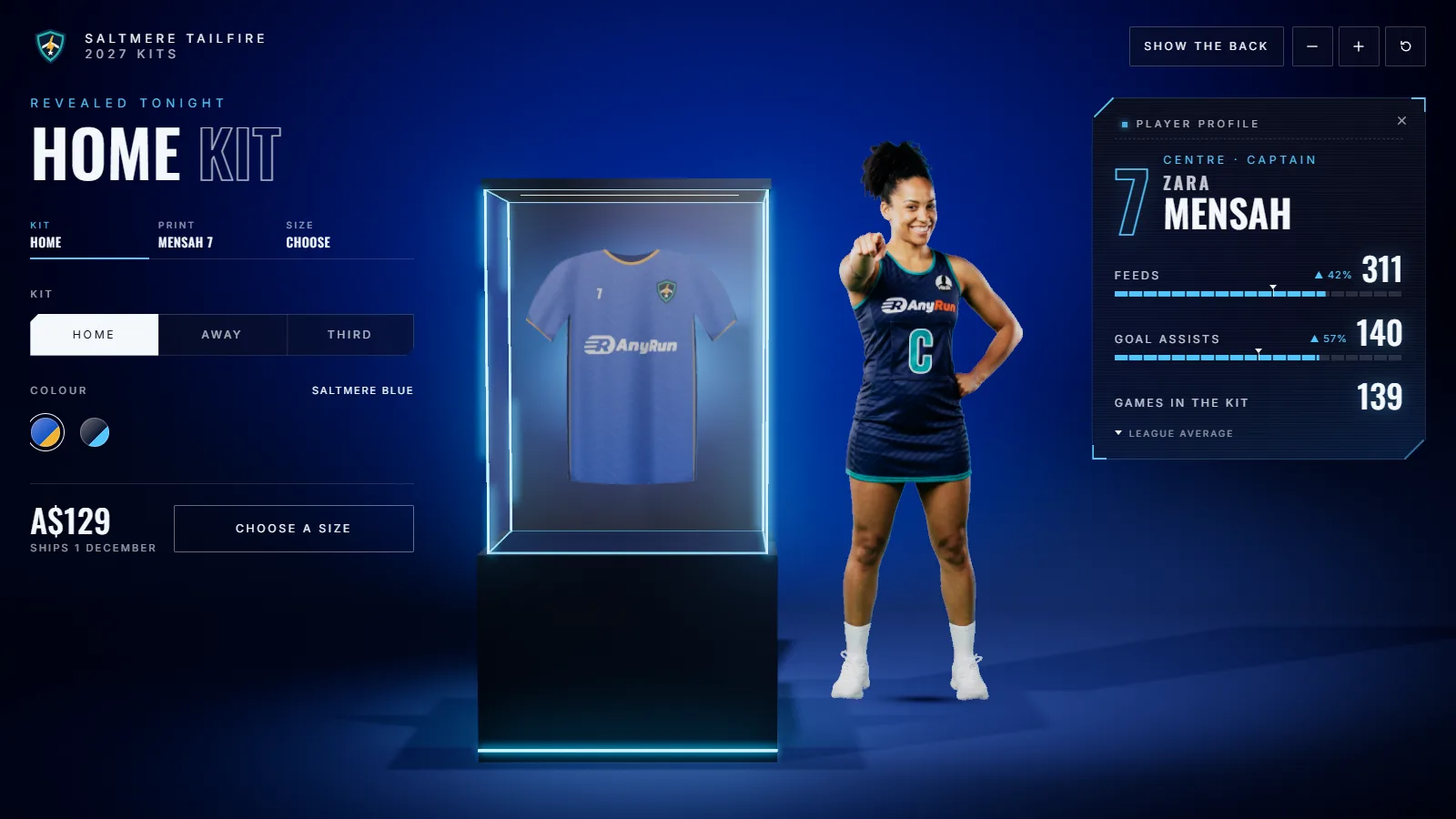
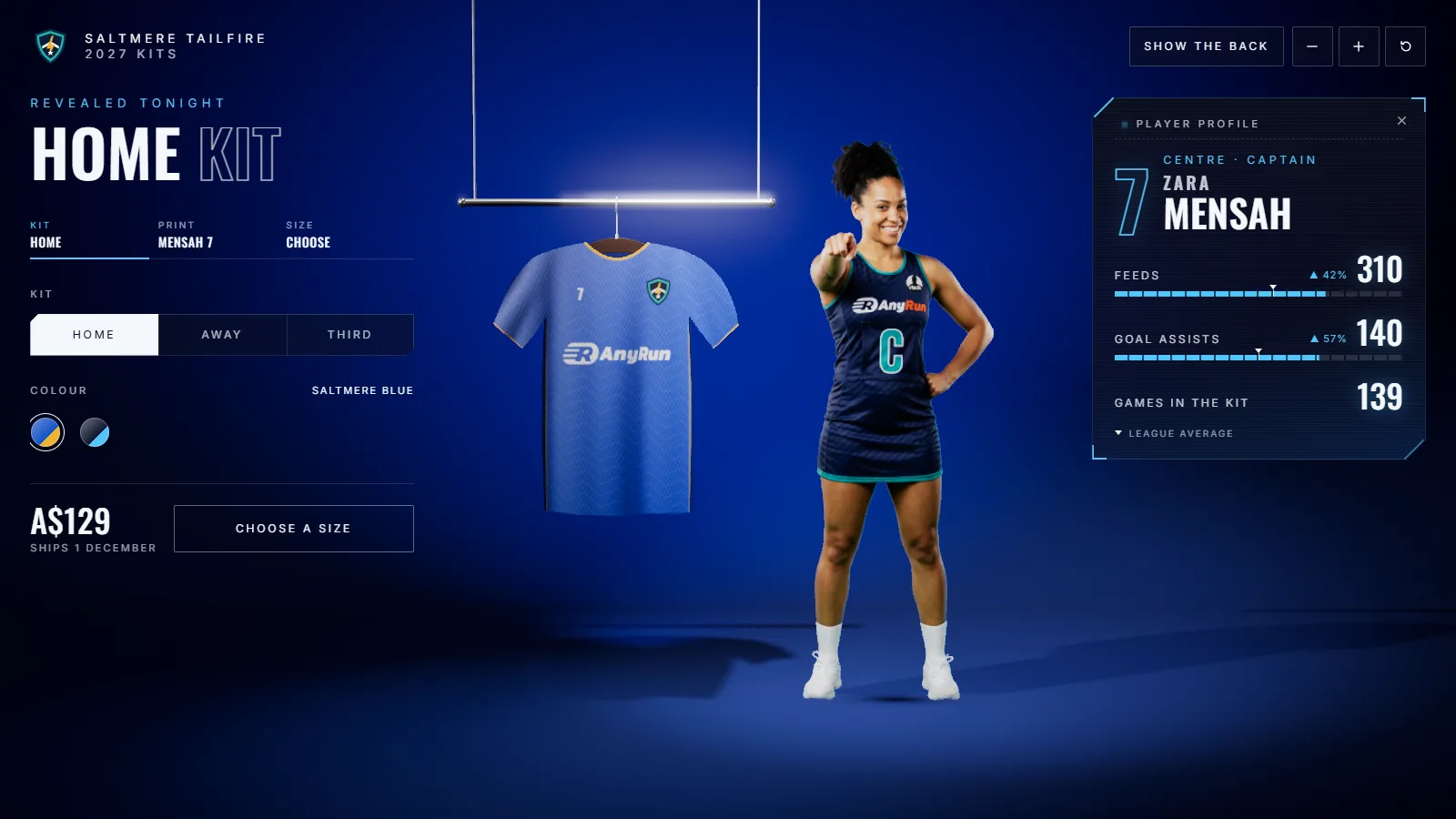
  • “These two are the front and back of the home kit, in blue.”

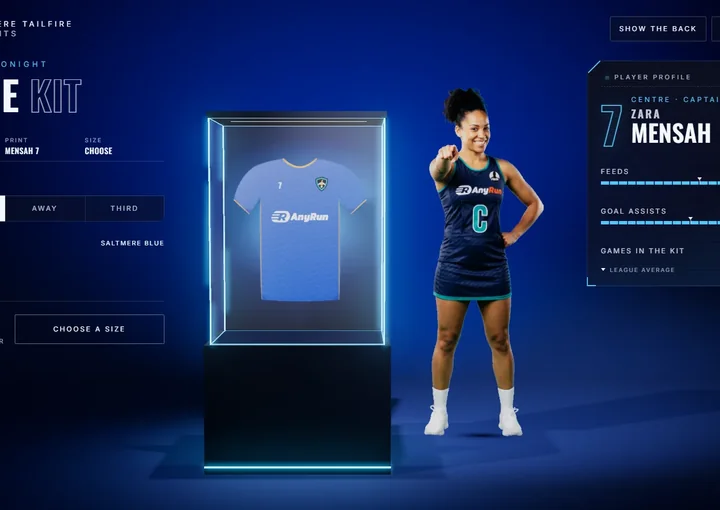
    Both cut out and set in the glass case on that colour.

Fill it in and change it

Names, numbers, stats, fixtures, colours, light, sound. Only what you mention changes.

  • “Freja shot 36 goals at 93 percent. League average is 28.”

    Her card shows both numbers, with the league marker on the bar.

  • “Add Saturday’s result to our season page. We won 81 to 77.”

    The game moves to results and the countdown turns to the next one.

  • “Our colours are navy and sky blue. Make it night.”

    The whole scene in your colours under night light.

  • “Use the Arcade style and the wide camera.”

    The same scene in that style, seen from further back.

  • “Add Tidewater Sports as our presenting partner, linked to their site.”

    Their name on the scene with the link. Add the logo in the panel or send it in the chat.

  • “Turn the music down and keep the crowd.”

    Quieter music under the same effects, in the draft straight away.

Publish and get the links

You confirm the rights to the photos once. Everything you need comes back in the reply.

  • “Looks good. Publish it.”

    The share link, the screen link for a TV and the embed code for your website.

  • “Make stills for Instagram and a video.”

    A link that renders them on your computer, then the downloads at 4:5, 1:1, 9:16 and 16:9.

  • “Where do I adjust this by hand?”

    The scene’s own page in the Studio, one click away.

  • “Take the vote offline.”

    The link and embeds stop showing it until you publish again.

  • “Show me the live scene.”

    The panel opens with a Play button, and the live scene plays inside the chat, for you only.

  • “Give me the link for the clubhouse TV.”

    The screen link: open it on the TV and the scene loops on its own.

Keep things tidy

Find, rename, copy and delete. A deleted scene can come back for 30 days.

  • “Show me my scenes.”

    Your newest scenes, which are live, and a link to each.

  • “Rename it Round 13 v Kites.”

    The new name in the Studio and in every list.

  • “Delete the old pre-season one.”

    The assistant checks with you first, then removes it.

  • “I deleted the wrong one. Bring it back.”

    Restored as a draft, as it was.

  • “Which club am I working in?”

    The workspace you connected and who is signed in.

  • “Open the Kites scene.”

    That scene in the panel, ready to change.

A whole match week in one chat

Monday to Sunday, from the countdown to the fans’ vote, without leaving the conversation.

  1. MondayMatch day goes live and onto the club website.
  2. ThursdayThe starting five, with stills for Instagram.
  3. SaturdayThe score goes in, and the vote opens at full time.
  4. SundayThe winner is named and the season page updates.
Available now

We beat the Comets 81 to 77. Put the score on match day and publish it again.

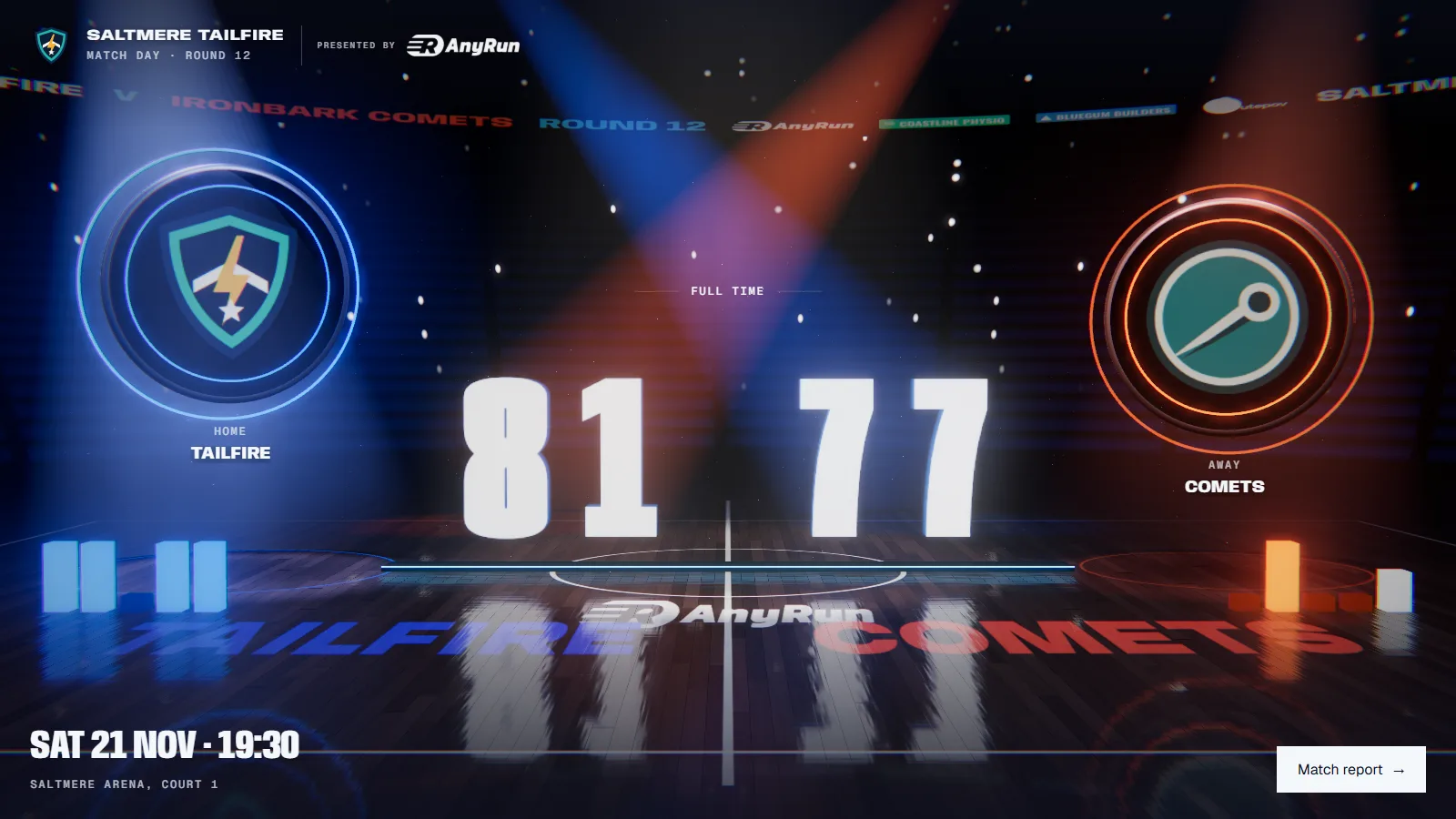
Done. The page now shows full time, 81 to 77, with Tailfire lit. The link and the embed on your website updated in place.

Match day at full time, inside the chat

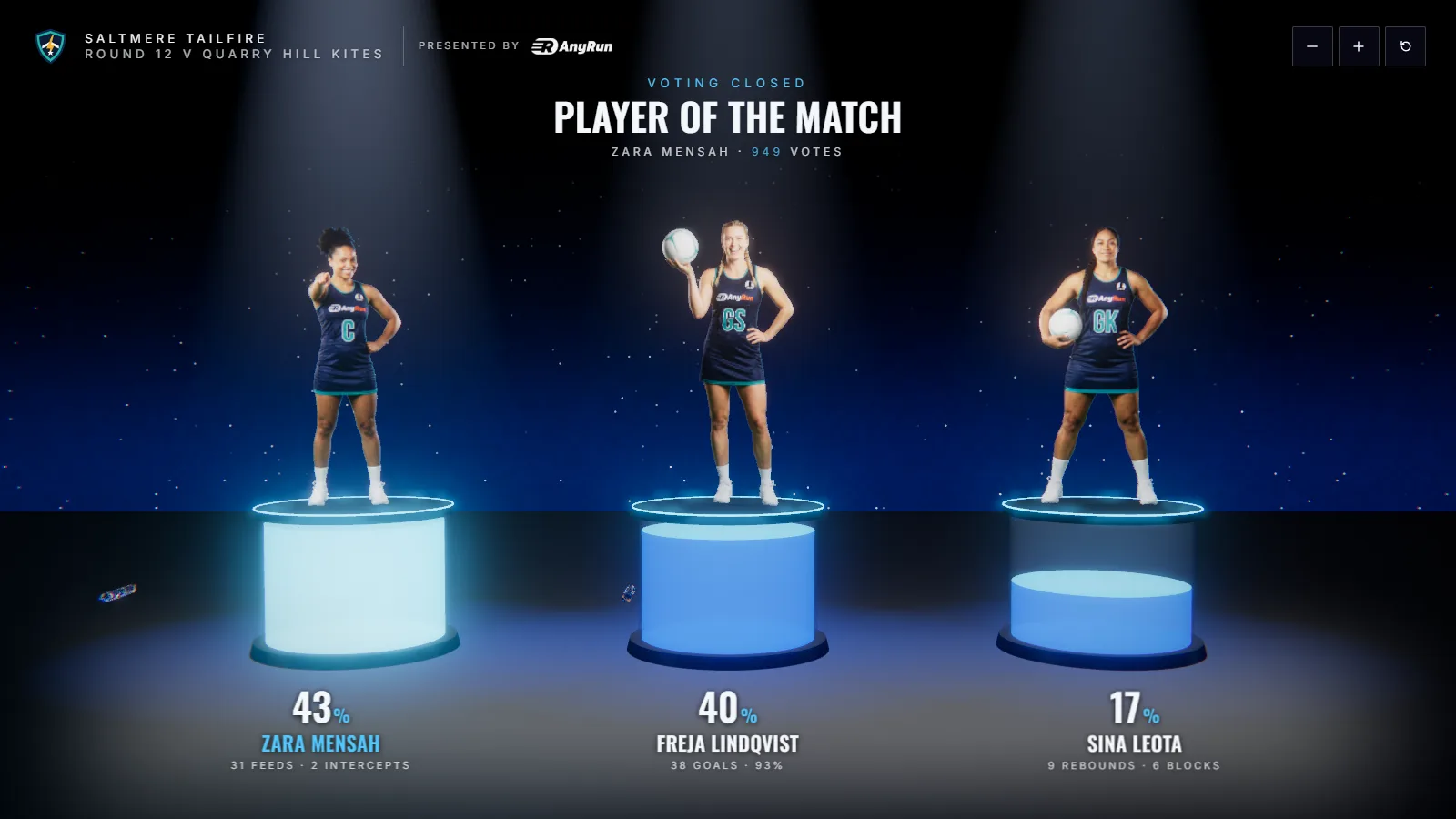
Now open the vote. Zara, Freja and Sina. Close it Sunday at noon.

The vote is live and closes Sunday at 12:00 pm. Here is the link to post.

The Unveil3D panel as it opens in the chat, shown in a plain chat frame. The clubs and players are fictional.

In your store

Coming soon: a 3D scene on your product pages that keeps up with your prices, stock and photos.

Shopify

Coming soon
  1. Install Unveil3D from the Shopify App Store and connect your account.
  2. Pick up to 20 products for a scene.
  3. Add the Unveil3D block to your product template, or switch it on for every product.

Prices, stock and photos stay in step with your store.

Ask about early access

WooCommerce

Coming soon
  1. Install the Unveil3D plugin from WordPress.org and connect your account.
  2. Pick products in WooCommerce, under Unveil3D.
  3. Show the scene under the gallery, in a product tab, or with the block or shortcode.

Change a price in WooCommerce and the scene follows.

Ask about early access

Saltmere Tailfire, its players and its kit are fictional.

On your website and screens

Every scene comes with these when you publish it.

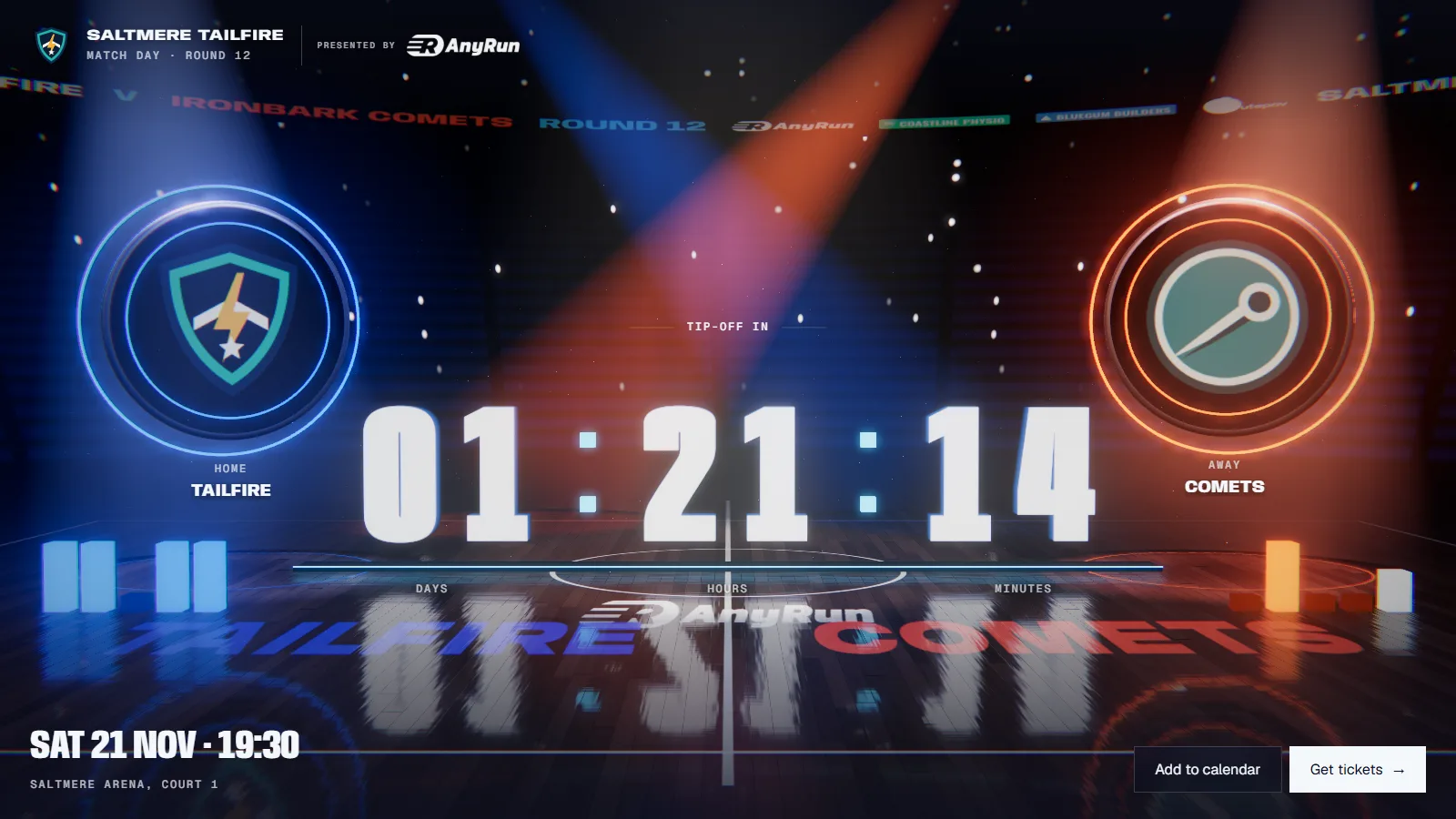
A countdown to tip-off between two club medals over a lit court, with Get tickets and Add to calendar buttons
  • Embed on your website

    Paste one snippet into WordPress, Webflow, Squarespace, Wix or your own code. It plays only on the websites you allow.

  • Share link and QR code

    Send the link, post it, or print the QR code on a flyer. It opens on any phone.

  • TV screen

    Open the screen link on a TV or shop screen and the scene plays on its own.

Questions people ask

Something else? Get in touch.

What can a connected app do?

Claude and ChatGPT work only in the workspace you pick when you connect. They can make and change scenes, add photos, publish, and ask for stills and video. They can't change your plan, billing or team. The store apps read your products and their photos, and tell your theme which scene to show.

What data do you get?

From a store: product names, prices, stock status, product links and photo addresses. No customer or order data. From a chat: the requests the assistant sends to Unveil3D and the photos you add. We don't read your conversations. Our privacy policy has the details.

Which plans include what?

The share link, the QR code and the screen link come with every plan, the trial included. Embeds come with Starter and Pro; during the trial they carry a small watermark. Stills come with Starter and Pro, and video with Pro. See pricing.

What happens when I disconnect?

Remove Claude or ChatGPT in the Studio under Account, Connected apps, and its access ends at once. Remove a store app and its scenes come off your product pages. Your scenes stay in your Unveil3D account either way.

When can I use the store and AI apps?

They're built. Shopify, WordPress.org, Anthropic and OpenAI each review apps before listing them, and each one goes live here when it passes. Embeds, share links and the screen link work today.

One scene, every place it goes

Two of the scenes you can make today. Step into one, then make yours with your own photos.

Your squad on a lit podium with your partners on the LED band. Click a player to bring her forward.The podium template

Netball players on a lit 3D podium carrying their partners’ logos

Shopify is a trademark of Shopify Inc. WooCommerce is a trademark of Automattic Inc. WordPress is a trademark of the WordPress Foundation. Claude is a trademark of Anthropic PBC. ChatGPT is a trademark of OpenAI. Unveil3D isn't affiliated with or endorsed by them.