Lost your authenticator or phone
Sign in with one of your recovery codes, then set up your authenticator again. No codes left? We can check it's you.
Sign in with a recovery code
- Open the sign-in link we email you as usual.
- On Enter your code, choose Can't use your app? Use a recovery code.
- Type one of the codes you saved when you set up your account and choose Sign in.
Each code works once. You got 10.
Set up your new phone
- Open Account from your menu.
- Under Two-factor sign-in, choose Remove authenticator.
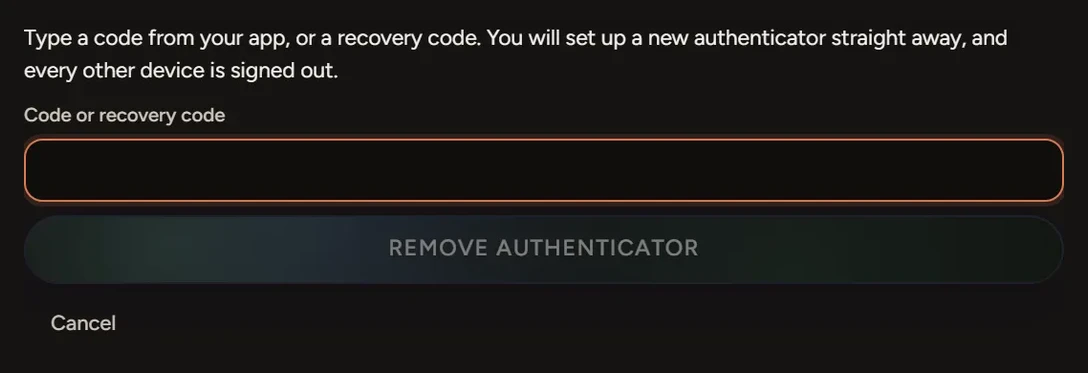
- Type a code from your app, or a recovery code, and choose Remove authenticator.
- Set up your new authenticator straight away. Every other device is signed out.
Running low on codes
Two-factor sign-in shows how many recovery codes you have left. For a fresh set, choose Make new recovery codes and type a code from your app. Your old codes stop working. The new ones aren't shown again, so save them somewhere safe.
No phone and no codes
Choose Ask me to check it's you on the recovery code screen, or use the form at the bottom of this page. We check it's you, then reset two-factor sign-in so you can set it up again.
If something goes wrong
- The app code is refused: set your phone's clock to update automatically, then try the newest code.
- A recovery code is refused: it may have been used already. Try another.
- You have a passkey: choose Sign in with a passkey. It doesn't need a code.