Set up a Match day scene
Add who you play, when and where. Fans see a countdown in their own time zone, then the final score once you enter it.
Add the game
- Under Choose a template, choose Use template on Match day.
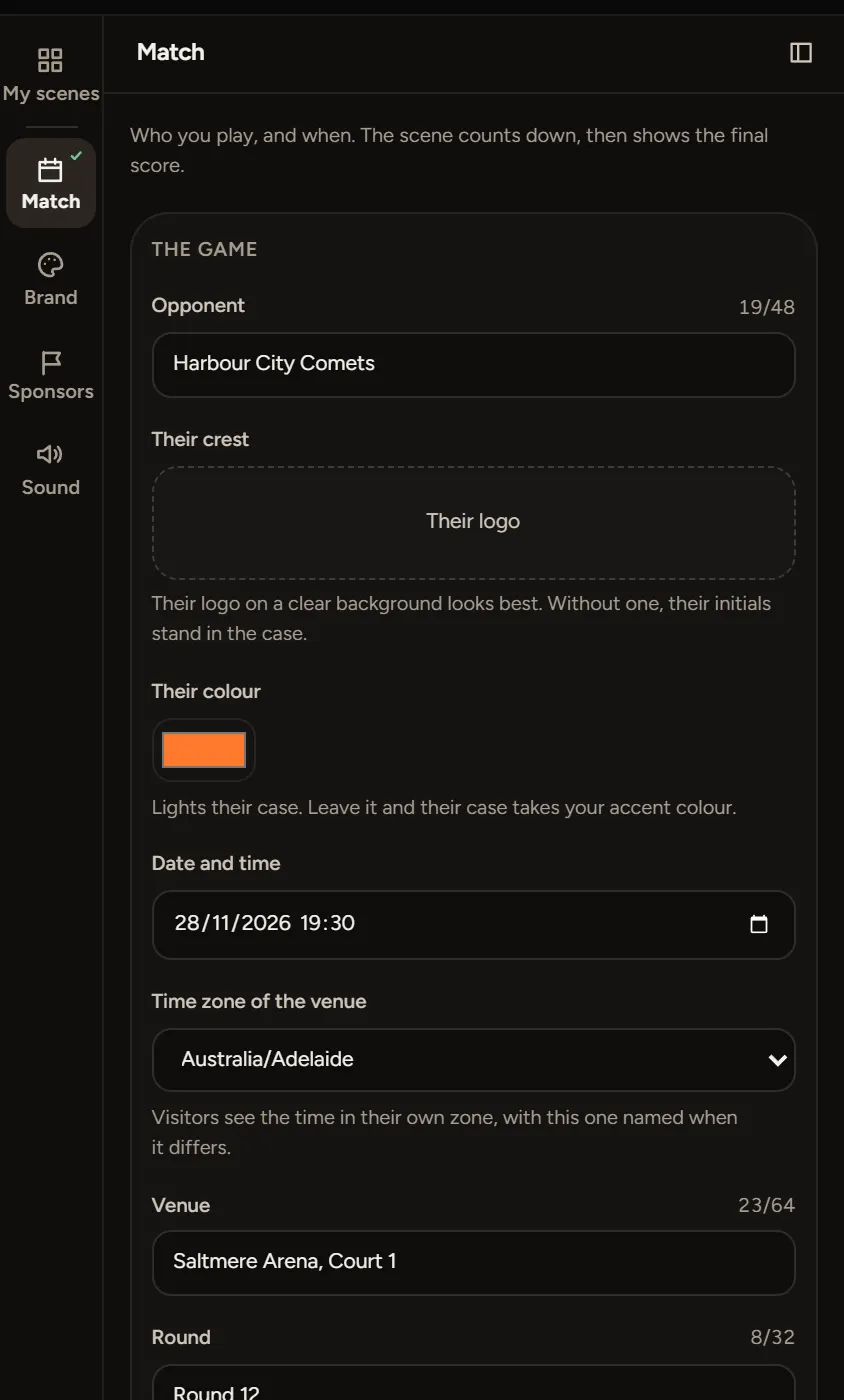
- In the Match step, type the Opponent. Add Their crest and Their colour if you have them.
- Set the Date and time the game starts.
- Pick the Time zone of the venue.
- Add the Venue and Round if you like.
Tickets
Paste your Ticket link. It shows as a button until the game is over. Leave Button words empty and it says Get tickets.
What fans see
- Before the game: a countdown under Starts in, the date, the venue, the ticket button and Add to calendar. The time shows in each fan's own time zone, with the venue's time named when it differs.
- Once it starts: Under way, with the start time.
- After the game: the final score, with the winner's case lit.
Change the countdown line in Line above the countdown, like Tip-off in.
After the game
- Open the scene and the Match step.
- Under Final score, enter both scores.
- Add a Match report link if you have one. It becomes the button.
- Choose Publish changes.
Under Last five results, add each club's recent form. Fans see it when they hover or tap a club.
If something goes wrong
- Add the opponent, date and time of the game: the checklist needs all three, plus the time zone.
- Enter both scores, or leave both empty: fill in both, or clear them with Clear the score.
- The link needs to start with https://: paste the full address from your browser.