Publish and embed your scene
Choose Publish, copy the link or the embed code for your website, then add that site to Allowed websites.
Publish
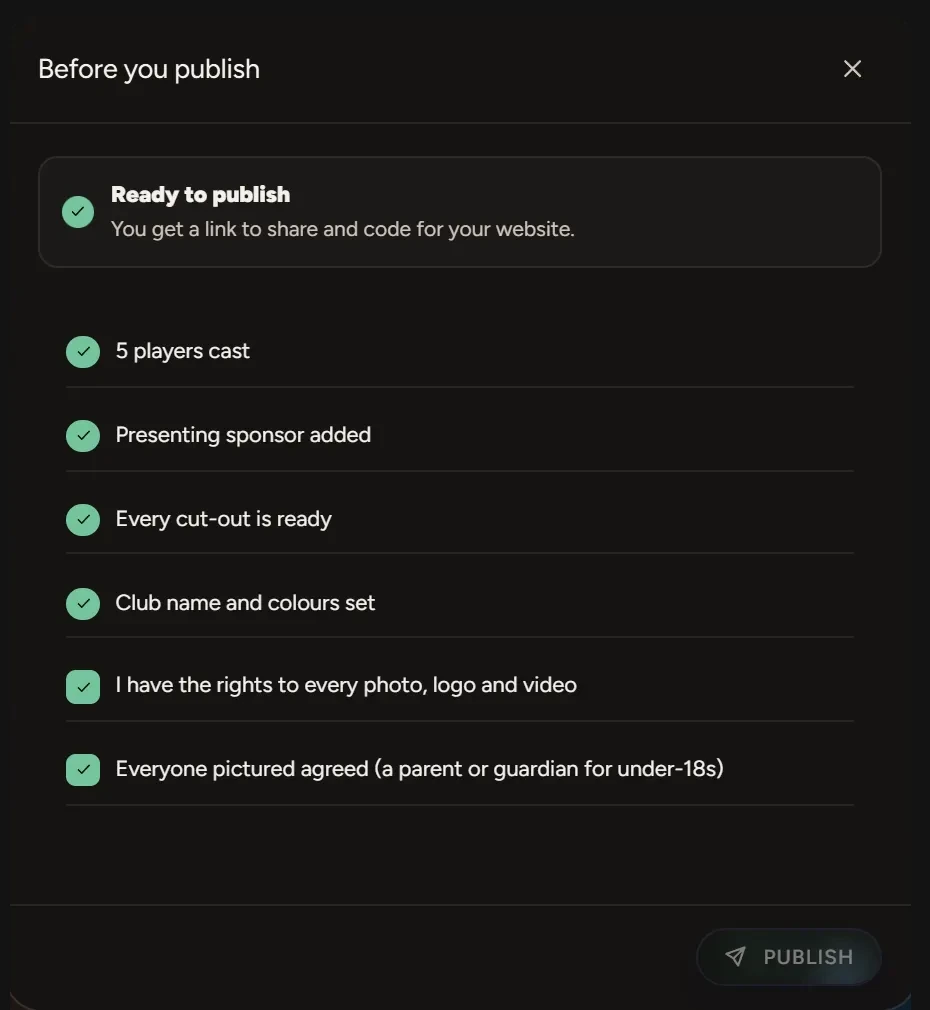
- Choose Publish at the top right of the editor.
- Before you publish lists what's ready. Anything missing has a link that takes you to it.
- Tick I have the rights to every photo, logo and video and Everyone pictured agreed (a parent or guardian for under-18s).
- Choose Publish.
After it's live
Choose Publish again any time to open Your scene is live. It has your link, the screen link, the QR code, your allowed websites and the embed code.
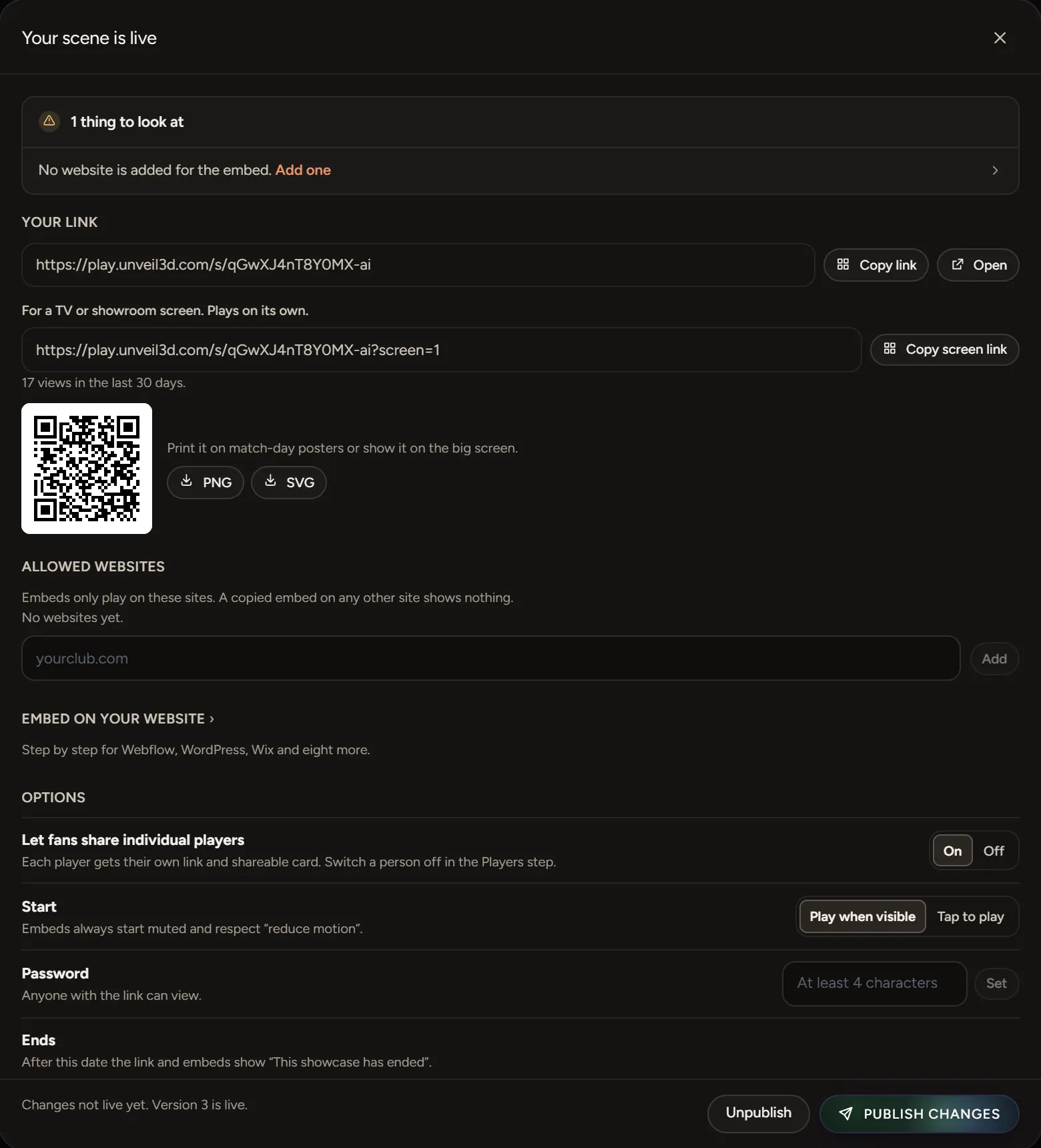
Edits you make after publishing wait until you choose Publish changes. The panel tells you when changes aren't live yet.
Put it on your website
- Under Allowed websites, type your site's address, like kestrelsnetball.com.au, and choose Add.
- Open Embed on your website and pick your website builder, such as WordPress, Shopify, Wix, Squarespace or Webflow.
- Copy the code and paste it where the scene should go, following the steps shown for your builder.
If your builder isn't listed, use Any website.
Options
- Let fans share individual players gives each player their own link and card.
- Start sets whether the scene plays when it scrolls into view or waits for a tap.
- Password keeps the link to people you tell.
- Ends takes the link down after a date.
Take it down
Choose Unpublish. You need to unpublish a showcase before you can delete it.