Set up a Season scene
Paste your fixtures from a spreadsheet or your league's site. The scene counts down to the next game and lists every result and the ladder.
Add your games
- Under Choose a template, choose Use template on Season.
- In the Season step, copy the rows from your spreadsheet or league page.
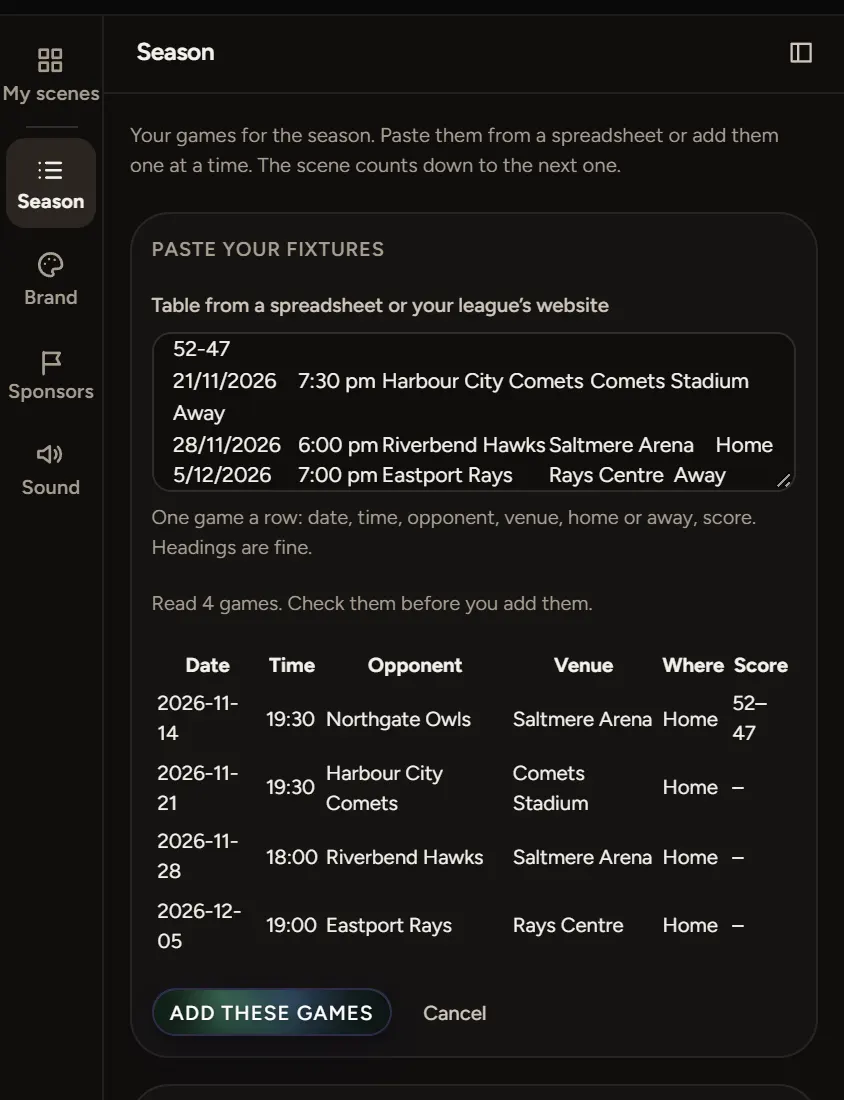
- Paste them into Table from a spreadsheet or your league's website. One game a row: date, time, opponent, venue, home or away, score. Headings are fine.
- Choose Read the table and check the games it found.
- Choose Add these games, or Replace my games with these.
You can also choose Add a game and type each one. A season holds up to 30 games.
Season settings
Pick Your club's time zone. Every date and time is in this zone. The countdown line says Starts in unless you change it, like Tip-off in or Kick-off in.
Under Opponents' crests, add one logo per club. It's used on every game against them. Without one, their initials show.
The ladder
Under Ladder, choose Add a team for each row, top of the table first. Fill in played, won, lost and points, and tick your own row to light it. It's optional, and holds up to 12 teams.
What fans see
The next game with a countdown and a ticket button. Below it, Fixtures, Results and Ladder tabs. A game with a score moves to Results, and its button becomes Match report when you've added one.
Keep it up to date
After each game, open the game, enter Our score and Their score, then choose Publish changes.
If something goes wrong
- Nothing to read there: copy whole rows, one game a row.
- Add your time zone and at least one game with a date: the checklist needs both.
- Pick a time like 19:30: fix the time in that game.