Sign in to the Studio
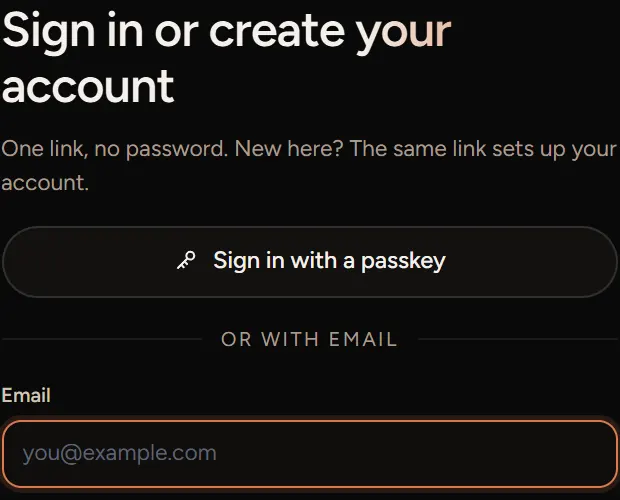
Sign in with the link we email you, then the code from your authenticator app. A passkey skips both.
With the email link
- Open the Studio and type your email address under or with email.
- Tick the human check, then choose Email me a sign-in link.
- Open the email on the same device and choose the link. It works once, for 15 minutes.
New here? The same link sets up your account. There's no password.
The code from your app
The first time you sign in, the Studio asks you to Protect your account. Add Unveil3D to an authenticator app on your phone, type the 6-digit code it shows, then save your 10 recovery codes.
After that, every sign-in asks for a code after the link. Open your authenticator app and type the 6-digit code for Unveil3D.
With a passkey
A passkey signs you in with your fingerprint, face or device PIN, without the email link or a code.
- Once you're signed in, open Account from your menu.
- Under Passkeys, choose Add a passkey and follow your device's steps.
- Next time, choose Sign in with a passkey on the sign-in page.

If something goes wrong
- No email: check your spam folder. After 30 seconds you can choose Resend link.
- That link didn't work: it was used already or it's over 15 minutes old. Choose Get a new link.
- This browser can't use passkeys: use the email link instead.
- Lost your phone: see Lost your authenticator or phone.